View Menu Template Details
-
Click Menu Templates.
-
On the Menu Templates screen, open the menu template that contains the menu item that you want to view.
-
On the Menu Template Detail screen, locate the menu item that you want to view.
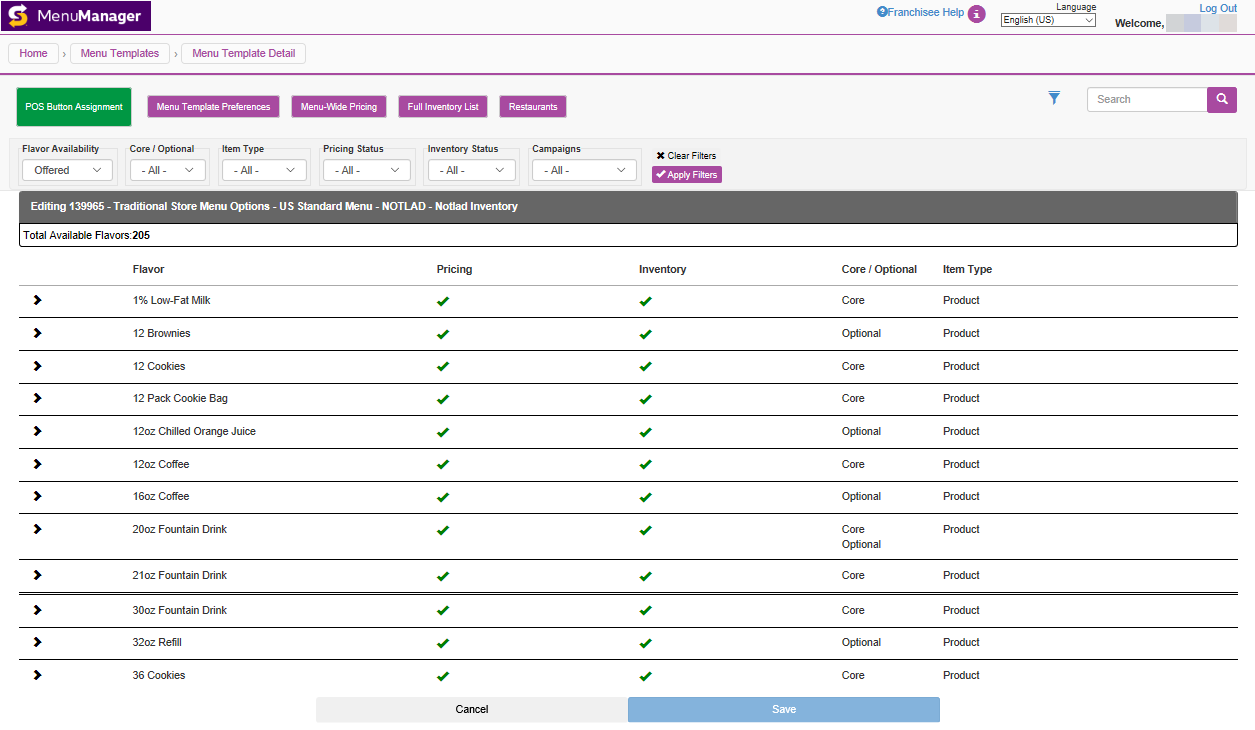
To search for a specific item, enter an appropriate term in the Search field and click  .
.
To filter the results, click  , select the filters to use, and click Apply Filters. To remove all filters, click Clear Filters.
To sort the result table from smallest to largest or A to Z based on a column, click the column header. Click the header a second time to reverse the sort.
The table lists the total number of menu items and has the following columns:
| Column Name | Description |
|---|---|
Click  to expand the row to display additional information about this menu item. to expand the row to display additional information about this menu item. |
|
| Flavor | Subcategory of the menu item. Examples include 10oz Soup or 12 Brownies. |
| Pricing |
Pricing status for the menu item.
|
| Inventory |
Inventory status for the menu item.
|
| Core/Optional |
Identifies if this is a Core menu item, an Optional menu item, or both.
|
| Item Type | Indicates if this menu item is a product (Product) or a product descriptor (Descriptor). |
 The pricing has been specified.
  The pricing has not been specified.
From the Menu Template Detail screen, you can:
To expand a row in the Menu Template Detail screen, click in the Type column. From here you can do one of the following: